
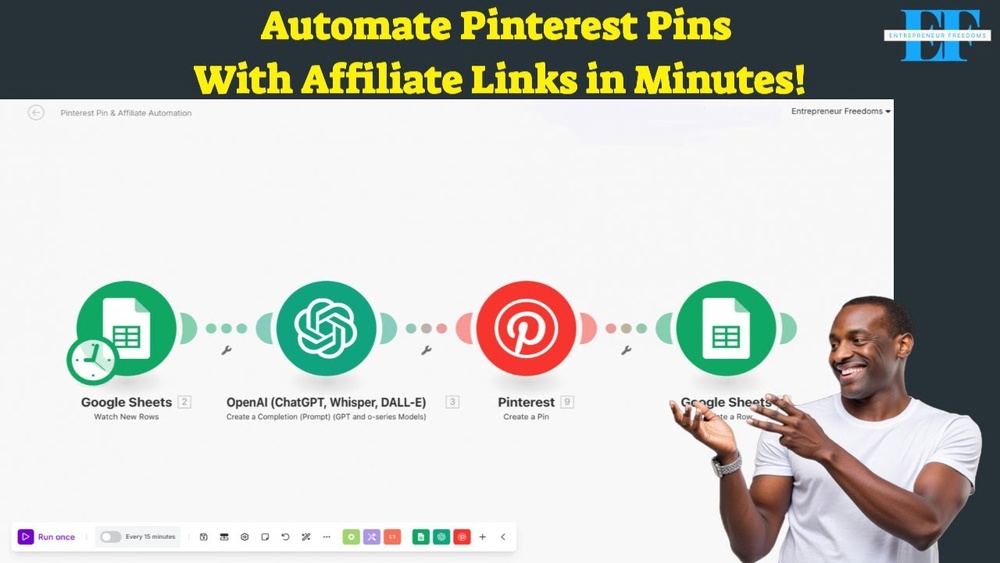


Essential Tools for Automation
To successfully automate Pinterest pins embedded with affiliate links, you need a specific set of tools that work together seamlessly to streamline the entire process. This automation not only posts pins automatically but also integrates your affiliate links within those pins, making it ideal for affiliate marketers who want to efficiently promote products without manually creating each pin.
Key Tools Required
Here are the essential tools you will need to build this automation :
- Google Sheets: Used for organizing and managing your pin data, such as SEO keywords, pin titles, affiliate links, and image URLs.
- OpenAI API Key: This is essential to leverage AI for generating SEO-optimized pin descriptions and content. While OpenAI’s ChatGPT is commonly used, alternatives like Claude can also be substituted.
- Pinterest Business Account: A business account on Pinterest is mandatory since it enables the use of Pinterest APIs for automation and provides additional marketing features not available on personal accounts.
- Automation Platform (e.g., Boost and Make): A platform that connects Google Sheets, OpenAI, and Pinterest via integrations and scenarios to automate pin creation and posting.
Why These Tools?
The combination of these tools allows you to :
- Control Content Creation: By using Google Sheets and AI, you maintain full control over the content quality and SEO optimization of your pins.
- Use Accurate Images: Instead of relying on AI to generate images—which often lack accuracy, especially for product images—you upload precise product images to Google Sheets for better branding and trust.
- Automate Posting: Using a Pinterest business account along with an automation platform allows you to schedule or instantly post pins, embedding affiliate links directly and saving you hours of manual work.
- Track and Update Posts: Your automation can update the status of pins and track Pinterest pin IDs for future reposting or analytics.
Estimated Setup Time
The setup time varies based on your experience :
- Experienced Users: Approximately 10 to 15 minutes to build and connect all components.
- Beginners: Around 20 to 25 minutes, considering the learning curve for connecting APIs and setting up Google Sheets properly.
Additional Resources
To accelerate your setup, consider joining community groups or downloading pre-built automation blueprints that include tested prompts and configurations. These resources often come with ready-to-use prompts optimized for SEO and affiliate marketing, significantly reducing the time and effort required to launch your automated pin campaigns.
Using Google Sheets for Data Management
Google Sheets serves as the backbone for managing all the data required for automating Pinterest pins with affiliate links. It acts as a centralized database where you can input, organize, and update your PIN-related information, ensuring the automation runs smoothly and efficiently.
Setting Up Your Google Sheet
Begin by structuring your Google Sheet with the essential columns that feed data into the automation process. A well-organized sheet improves data retrieval accuracy and supports the AI in generating optimized content.
| Column Name | Description | Example Usage |
|---|---|---|
| SEO Keyword | Targeted keywords are used to enhance SEO in pin titles and descriptions. | “Home office desk setup” |
| Affiliate Link | URL of the product affiliate link that you want to embed in the pin. | https : //amazon.com/affiliate-product |
| Pin Title | The title of the Pinterest pin that will be displayed. | “Best Ergonomic Desk Chair for Productivity” |
| Image URL | Direct URL of the product image to be used in the pin. | https : //images.amazon.com/product-image.jpg |
| Status | Tracking the posting status of each pin (e.g., “post”, “posted”). | “posted” |
| Pin ID | Unique identifier assigned by Pinterest after the pin is posted, used for tracking and reposting. | 1234567890 |
Benefits of Using Google Sheets
Google Sheets is a free and user-friendly tool that offers several advantages :
- Cost-Efficient : Unlike paid alternatives such as Airtable, Google Sheets is free, making it accessible for anyone starting.
- Easy Integration : It integrates smoothly with automation platforms, allowing for real-time data updates and triggers.
- Manual Control : You have full control over the data input, especially for images, which AI sometimes cannot generate accurately.
- Scalable and Customizable : You can add rows as needed for testing or expanding your pin campaigns without any additional cost.
How to Manage Data Effectively
Follow these best practices to manage your Google Sheet efficiently :
- Pre-fill Rows: Add multiple rows with sample data before running automation to test and ensure everything works correctly.
- Consistent Formatting: Keep your URLs, keywords, and titles consistent in format to avoid errors during automation.
- SEO Integration: Use researched SEO keywords in the “SEO Keyword” column to improve pin visibility and ranking.
- Update Status and IDs: Automate updates to the “Status” and “Pin ID” columns after pins are posted to track performance and avoid duplicate postings.
Using Google Sheets with Automation Platforms
In the automation workflow, Google Sheets acts as the trigger and data source. The automation watches for new rows or status changes to initiate pin creation. Here’s how it works :
- Watch for New Rows: The automation monitors the sheet for any new entries that need to be posted.
- Fetch Data: It retrieves the pin title, SEO keywords, affiliate link, and image URL for each row.
- Pass Data to AI: The title and SEO keywords feed into the AI module (like OpenAI) to generate optimized pin descriptions.
- Create Pinterest Pin: The automation uses all this data to post a pin to the specified Pinterest board.
- Update Sheet: After posting, the status is updated to “posted,” and the pin ID from Pinterest is saved for reference.
Controlling Your Images and Content
One important takeaway is to always upload your own product images rather than relying on AI-generated visuals. This ensures :
- Accuracy: The image accurately represents the product you are promoting.
- Trustworthiness: Real product images help build trust with your audience.
- Brand Consistency: Control over images maintains a consistent aesthetic for your pins.
Summary
Google Sheets is the cornerstone of your Pinterest automation strategy. By properly structuring your sheet and maintaining accurate, SEO-rich data, you empower your AI and automation tools to create effective, affiliate-linked pins that drive traffic and sales with minimal manual effort. The free and flexible nature of Google Sheets makes it an unbeatable choice for affiliate marketers looking to automate their Pinterest presence efficiently.
Integrating Integromat for Workflows
Integromat (now known as Make) is a powerful automation platform that allows you to connect multiple apps and services to build seamless workflows. In the context of automating Pinterest pins with affiliate links, Integromat plays a pivotal role in orchestrating the entire process—from monitoring new entries in a Google Sheet to posting pins on Pinterest with affiliate links embedded.
Getting Started with Integromat
To build this automation, you first need to log in to your Integromat account. The process begins by creating a new “Scenario,” which essentially acts as the workflow that connects your tools and automates the tasks.
The first module in your scenario should be set to Google Sheets. Specifically, you’ll want to use the “Watch for new row” trigger. This allows the automation to monitor your Google Sheet for any new rows added, which contain the data required for creating pins.
Connecting Google Sheets
Connecting your Google Sheet to Integromat is straightforward. You simply select Google Sheets from the integrations list, authenticate your Google account, and then specify the Sheet ID that corresponds to the sheet you prepared earlier. This sheet should include columns such as :
- SEO Keywords
- Affiliate Link
- Pin Title
- Image URL
- Status
- Pin ID
It’s important to add a few test rows in your sheet before running the automation so Integromat can fetch and process them properly during testing.
Building the Scenario Step-by-Step
- Watch for new rows: Set this as the trigger to catch new entries in your Google Sheet.
- Connect OpenAI module: Use this to generate SEO-optimized content for your pins based on the data in the sheet (more on this in the next section).
- Create Pin on Pinterest: Add the Pinterest module to create pins automatically using the content and images sourced from your sheet and AI-generated descriptions.
- Update Google Sheet: After posting a pin, update the row in your Google Sheet with the post status and Pinterest Pin ID for tracking purposes.
Handling Pinterest Integration
To automate pin creation, you must connect your Pinterest business account to Integromat. Only business accounts provide the necessary API access for automation. If you have a personal Pinterest account, convert it to a business account first.
During the connection process, you might be prompted to reconnect your Pinterest account periodically due to security features implemented by Pinterest and Integromat.
When setting up the Pinterest module to create a pin, configure the following :
- Source Type: Set to “Image” to use images from your Google Sheet.
- Image URL: Map this to the image URL column in your Google Sheet.
- Pin Title: Map this to the pin title column in your Google Sheet.
- Description: Use the AI-generated content from the OpenAI module.
- Affiliate Link: Map this to the affiliate link column to embed your affiliate URL.
- Board Selection: Choose the Pinterest board where the pins should be posted.
Optimizing Workflow Execution
Once everything is configured, you can test-run the scenario manually to verify that pins are created correctly and that data flows between Google Sheets, OpenAI, and Pinterest smoothly. The status column in your sheet will update to “posted,” and the pin ID will be recorded to track the pin on Pinterest.
For ongoing automation, you can schedule this scenario to run at intervals, posting multiple pins per day. However, it’s important to limit the number of pins you post daily to avoid Pinterest’s spam filters. Posting between 1 to 5 pins daily is recommended, with a maximum of up to 10 pins if you manage multiple products or affiliate links.
Benefits of Using Integromat
Using Integromat for this automation provides several advantages :
- Centralized Workflow Management: You can connect all your tools (Google Sheets, OpenAI, Pinterest) within one platform.
- Customizable Automation: Fine-tune each step, control data flow, and add conditional logic if needed.
- Time-Saving: Automate repetitive tasks like pin creation, freeing up time for other business activities.
- Tracking and Updates: Automatically update your Google Sheets with post status and pin IDs to keep track of your campaigns.
By integrating Integromat into your affiliate marketing strategy on Pinterest, you create a powerful system that automates content posting, keeps your data organized, and optimizes your affiliate marketing efforts.
Leveraging OpenAI for Automation
OpenAI’s advanced artificial intelligence models offer incredible capabilities for automating content creation, especially for affiliate marketing on platforms like Pinterest. In this automation workflow, OpenAI is used to generate SEO-friendly, engaging descriptions and content for your pins, ensuring that your posts are optimized for search and user engagement.
Setting Up OpenAI in Your Workflow
Once you have Integromat set up with the Google Sheet trigger, the next step is to integrate OpenAI to create content dynamically based on the data in your sheet.
To connect OpenAI :
- Use the OpenAI module in Integromat (labeled as “Create a prompt”).
- Input your OpenAI API key and organization details to authenticate.
- Choose your preferred AI model—typically the latest GPT model for best results.
After connecting, you will configure the prompt that instructs the AI what kind of content to generate. This is a crucial step because the quality of your prompt directly impacts the quality of the AI-generated content.
Crafting Effective Prompts for SEO Optimization
The video creator emphasizes the importance of carefully structuring your prompt to maximize SEO benefits and content relevance. Here are key points for prompt engineering :
- Include SEO Keywords: Use SEO keywords researched beforehand and pass them to the prompt to ensure the generated content includes those keywords naturally.
- Clear Instructions: Separate instructions clearly to specify what you want the AI to do and what to avoid.
- Content Focus: Focus the prompt on generating pin descriptions or titles that attract attention and are relevant to the product.
Example prompt structure might look like this :
Create an engaging Pinterest pin description for the product titled "{Pin Title}" incorporating the SEO keyword "{SEO Keyword}". Ensure the description is informative, persuasive, and contains relevant keywords naturally.
Configuring Parameters and Tokens
Integromat allows you to specify the number of tokens (units of text) that the AI will generate. The video suggests using around 500 tokens to ensure the content is thorough and complete. However, you may adjust this number based on your needs and costs.
Testing and Refinement
After setting up the OpenAI module with your prompt and parameters, run tests to see the content generated. The video demonstrates running the scenario manually, reviewing the AI-generated message, and ensuring that it fits your expectations for pin descriptions.
Keep refining your prompt based on the outputs to improve the quality and SEO relevance of the generated content. This iterative process is key to getting the best results from OpenAI.
Advantages of Using OpenAI in Affiliate Marketing Automation
- Time Efficiency: Automate content creation that would otherwise require manual writing.
- SEO Enhancement: Automatically incorporate SEO keywords to improve pin visibility and ranking on Pinterest search.
- Consistency: Maintain consistent style and tone across multiple pins.
- Scalability: Generate content for dozens or hundreds of pins quickly, enabling higher posting frequency.
Additional Tips
The video creator mentions that while OpenAI is used here, other AI platforms like Claude or other similar services can be substituted depending on your preference or availability. The key is to have an AI service that can generate text based on prompts.
Moreover, integrating SEO keywords into your AI prompts is a strategic move that boosts the discoverability of your pins on Pinterest, which is crucial for driving traffic to your affiliate links.
Summary
Leveraging OpenAI within your Integromat workflow empowers you to automate the generation of high-quality, SEO-optimized content for Pinterest pins. This reduces manual work and enhances the effectiveness of your affiliate marketing campaigns by producing engaging descriptions that attract clicks and conversions.
Utilizing Pinterest for Content Ideas
Pinterest is not only a platform to post pins but also a rich source of content ideas and inspiration, especially for affiliate marketers looking to optimize their pins. The video highlights practical ways to leverage Pinterest to generate pin titles, descriptions, and overall content strategies.
Researching Keywords and Trends on Pinterest
One of the first steps in preparing your Google Sheet for automation is to research SEO keywords relevant to your niche or product. Pinterest’s search bar and trends are excellent tools for discovering popular keywords and trending topics.
- Type in keywords related to your product or niche and observe the autocomplete suggestions to find popular search terms.
- Analyze trending pins in your category to see what kind of titles, keywords, and descriptions they use.
- Use Pinterest Trends to track the popularity of specific keywords over time.
These insights help you populate your Google Sheet’s SEO keyword column with high-value terms that the AI will then incorporate into your pin content generation.
Gathering Visual Content
Images are crucial on Pinterest since it is a highly visual platform. The video creator stresses the importance of controlling the images you use for pins rather than relying on AI-generated images, which may not always be accurate or relevant.
Recommended approaches include :
- Using product images directly from affiliate sources like Amazon, AliExpress, or eBay.
- Uploading your own curated images to ensure quality and relevance.
- Placing image URLs in your Google Sheet to be automatically pulled into the automation workflow.
This guarantees that your pins are visually appealing and correctly represent the products being promoted, which is essential for user trust and engagement.
Studying Successful Pins and Competitors
Pinterest also serves as a real-time market research tool. By observing what successful affiliate marketers or brands are posting, you can glean ideas for :
- Pin titles that attract clicks.
- Descriptions that convert viewers into buyers.
- Design styles and image compositions that perform well.
Incorporating these insights into your pin titles and descriptions improves your chances of success and helps tailor your content to Pinterest’s audience preferences.
Content Planning and Scheduling
With the knowledge gained from Pinterest research, you can plan your pins strategically in your Google Sheet by :
- Scheduling pins for optimal posting times based on trending hours.
- Varying your product types and content styles to avoid repetitive posts.
- Ensuring a steady flow of fresh content to keep your Pinterest board active and engaging.
The video advises not to overwhelm Pinterest by posting too many pins at once. Instead, space out your posts to comply with Pinterest’s guidelines and avoid triggering spam filters.
Using Pinterest for Traffic Generation
Beyond content ideas, Pinterest is a valuable traffic source for affiliate marketers. By creating well-optimized pins with engaging titles, descriptions, and images, you can direct users to your affiliate links effectively.
The video also references another tutorial focused on using Pinterest to drive traffic to blogs or websites, reinforcing that Pinterest can be a versatile tool for affiliate marketing beyond just pin automation.
Summary
Utilizing Pinterest as a source for content ideas helps you craft pins that are not only visually appealing but also optimized for engagement and SEO. By researching keywords, studying trends, and analyzing successful pins, you can plan your automated pin creation more effectively and boost your affiliate marketing success on Pinterest.
Updating Google Sheet Rows Effectively
One of the key steps in automating Pinterest pins with affiliate links is maintaining accurate and up-to-date data in your Google Sheet. After your automation posts the pin to Pinterest, it’s essential to update the corresponding row in your Google Sheet to reflect that the pin has been posted, as well as to store important information such as the pin ID. This helps you keep track of what content has been published and manage your affiliate marketing efforts efficiently.
Why Update Your Google Sheet?
Updating rows in your Google Sheet serves multiple purposes :
- Status Tracking : It indicates which pins have been successfully posted, preventing duplicates and helping you monitor progress.
- Pin ID Storage : Recording the Pinterest pin ID allows easy access to the pin for future reference, reposting, or analytics.
- Automation Control : By marking rows as “posted,” you can design your automation to skip those rows in subsequent runs, improving efficiency.
Setting Up the Update Module
To implement this in your automation, you add a module to update the Google Sheet row after the Pinterest pin is created. Here’s how to do it effectively :
- Select the Google Sheet : Choose the same Google Sheet you used to store your pin data and affiliate links.
- Specify the Sheet and Row : Make sure to select the exact sheet tab and specify the row number you want to update. This row corresponds to the pin that was just posted.
- Update the Status Column : Set the status field to a value like “posted” to indicate that this pin is done.
- Store the Pin ID : Retrieve the pin ID generated by Pinterest in the previous step of the automation and save it in the designated column in your sheet.
Practical Tips for Updating Rows
- Ensure Row Number Accuracy : The row number you update must exactly match the row from which you pulled the data to post the pin. This coordination is critical for seamless updates.
- Use Clear Status Labels : Use consistent and descriptive status labels such as “posted,” “pending,” or “error” to easily filter and manage your pins.
- Track Affiliate Links and Metadata : Besides status and pin ID, you might also want to log timestamps or other metadata to analyze your posting schedule later.
- Automate Cleanup : Consider adding routines that archive or clear rows once pins are confirmed posted, keeping your sheet clean and manageable.
Example Workflow
Imagine you have a row in your Google Sheet with the following columns : SEO Keyword, Affiliate Link, Pin Title, Image URL, Status, and Pin ID. After your automation creates a pin on Pinterest, the update module :
| Column | Before Update | After Update |
|---|---|---|
| Status | pending | posted |
| Pin ID | (empty) | 1234567890abcdef |
This update confirms the pin was successfully posted and associates the unique pin ID from Pinterest with that row.
Common Challenges and Solutions
While updating Google Sheet rows is straightforward, some common issues might arise :
- Incorrect Row Targeting : Always ensure the automation passes the correct row number to the update module. Using the output of the “watch for new row” module helps maintain alignment.
- Permission Issues : Your automation tool must have editing access to the Google Sheet. Double-check your integrations and permissions.
- Data Overwrites : If multiple automations or users edit the sheet simultaneously, there’s a risk of overwriting data. Implement locking mechanisms or schedule updates carefully.
By attentively setting up your Google Sheet update module, you ensure that your automation remains organized, efficient, and reliable, supporting your affiliate marketing efforts through Pinterest with clear tracking of each pin’s status and details.
Testing Your Automation Setup
Once you have configured your automation to post Pinterest pins with affiliate links and update your Google Sheet, thorough testing is crucial to ensure everything functions correctly. Testing validates each step, confirms data flows properly, and helps you catch and resolve issues before running the automation at scale.
Step-by-Step Testing Process
Follow these steps to test your Pinterest pin automation :
- Prepare Test Data : Add several rows to your Google Sheet with realistic sample data, including SEO keywords, affiliate links, pin titles, and image URLs. This simulates actual content you plan to post.
- Run the Google Sheet Trigger Manually : In your automation platform, manually trigger the scenario using one of your test rows. This ensures the automation grabs the row data correctly.
- Verify OpenAI Response : Check the output of your OpenAI module to confirm it generates the pin description or content as expected, including proper SEO keyword usage and formatting.
- Check Pinterest Pin Creation : Observe the Pinterest module’s execution to confirm it creates a pin with the correct image, title, description, and affiliate link. Reconnect your Pinterest business account if prompted.
- Validate Google Sheet Update : Confirm that the automation updates the status column in your Google Sheet to “posted” and records the Pinterest pin ID in the appropriate field.
- Refresh Pinterest Board : Manually refresh your Pinterest board to see the newly posted pin. Open the pin and verify the image, description, and affiliate link direct users correctly.
Common Testing Observations
During testing, you may notice the following :
- Reconnection Prompts : Pinterest may request you to reconnect your business account during testing due to security features. This is normal and can be resolved by authorizing the connection again.
- Content Flickering : When viewing pins on Pinterest, content may flicker or update dynamically. This happens because multiple affiliate marketers post similar products, leading to frequent content refreshes.
- Token Usage : When configuring OpenAI, setting token limits (e.g., 500 tokens) ensures your descriptions are comprehensive. You can adjust this lower (e.g., 150 tokens) for shorter content, but testing helps find the right balance.
Best Practices for Smooth Testing
- Test Multiple Rows : Run tests on multiple rows to ensure the automation handles different data variations correctly.
- Monitor Logs and Outputs : Check your automation platform’s logs for errors or warnings during each step.
- Use Manual Triggers : Manually triggering the automation for specific rows helps isolate issues and verify each part independently.
- Incremental Testing : Test each module separately (Google Sheets trigger, OpenAI content generation, Pinterest pin creation, Google Sheets update) before linking them together.
- Validate Affiliate Links : Always double-check that the affiliate links embedded in pins direct correctly to the intended product pages to avoid broken links or mistakes.
Example Testing Scenario
Suppose you have a row with the following data :
- SEO Keyword : “wireless earbuds”
- Affiliate Link : Amazon product URL
- Pin Title : “Best Wireless Earbuds 2024”
- Image URL : Direct link to earbuds image
- Status : “pending”
After running the automation manually :
- The OpenAI module generates a catchy, SEO-optimized description for the pin.
- The Pinterest module creates the pin on your business account, using the specified image, title, description, and affiliate link.
- The Google Sheet row updates the status to “posted” and logs the Pinterest pin ID.
- You refresh your Pinterest board and see the pin live, with a proper image and a clickable affiliate link.
Troubleshooting Tips
If your automation does not work as expected during testing, consider the following troubleshooting steps :
- Check API keys and permissions for OpenAI and Pinterest integrations.
- Ensure your Google Sheet columns match the exact names used in your automation modules.
- Verify your Pinterest business account is properly connected and authorized.
- Review error messages or logs in your automation platform for specific clues.
- Test with different image URLs to rule out broken or inaccessible images.
By thoroughly testing your automation setup, you guarantee a reliable, hands-free system that consistently posts affiliate-linked pins on Pinterest, helping you grow your online business with confidence.
Conclusion and Final Thoughts
Automating Pinterest pins with affiliate links is a powerful strategy to boost your affiliate marketing efforts and generate passive income with minimal ongoing effort. By integrating Google Sheets, OpenAI, and Pinterest business accounts through automation platforms like BoostandMake (Make.com), you can streamline the entire process of creating, posting, and tracking affiliate pins.
Key Takeaways
- Control Your Content : Using pre-selected images and crafted prompts ensures high-quality pins that resonate with your audience and comply with Pinterest’s policies.
- Leverage AI for Optimization : OpenAI helps generate SEO-friendly pin descriptions that improve discoverability and engagement.
- Maintain Organized Data : Google Sheets acts as the central hub for managing pin titles, affiliate links, images, and statuses, providing transparency and ease of use.
- Automate Efficiently : Setting up modules to post pins, update statuses, and log pin IDs ensures smooth, error-free automation that requires minimal manual intervention.
- Test Thoroughly : Rigorous testing at each step prevents disruptions and builds confidence in your automation’s reliability.
- Post Strategically : Limit daily pin posts to a manageable number (e.g., 1 to 5 or up to 10) to avoid Pinterest’s spam filters and maintain healthy account standing.
Opportunities and Next Steps
This automation setup is highly customizable and scalable. You can expand it to include :
- Posting to multiple Pinterest boards or accounts.
- Integrating other affiliate platforms beyond Amazon, such as eBay or AliExpress.
- Incorporating scheduling features to space out pin posts automatically.
- Tracking clicks and conversions from your affiliate links for better analytics.
Additionally, joining communities that focus on automation and affiliate marketing can provide you with ready-made templates, prompts, and ongoing support. Engaging in live sessions or webinars helps you stay updated with the latest tools and best practices.
Final Encouragement
While the initial setup requires some time and attention—typically 10 to 25 minutes depending on your experience—the payoff in automation and passive income generation is substantial. Start small, experiment with a few pins, and gradually scale up as you become more confident in your process.
Remember, consistent and quality content combined with smart automation can significantly accelerate your online business growth. Embrace these tools, optimize your workflows, and enjoy the freedom that comes with successful affiliate marketing on Pinterest.